> ## Documentation Index
> Fetch the complete documentation index at: https://docs.streemlined.io/llms.txt
> Use this file to discover all available pages before exploring further.
# Interactive Testing
> Interactive testing during development with stubbed sources and sinks
Test Run mode transforms your pipeline into an interactive testing environment where you can push data, observe transformations, and understand exactly what's happening at every step.
## How It Works
When you start a Test Run:
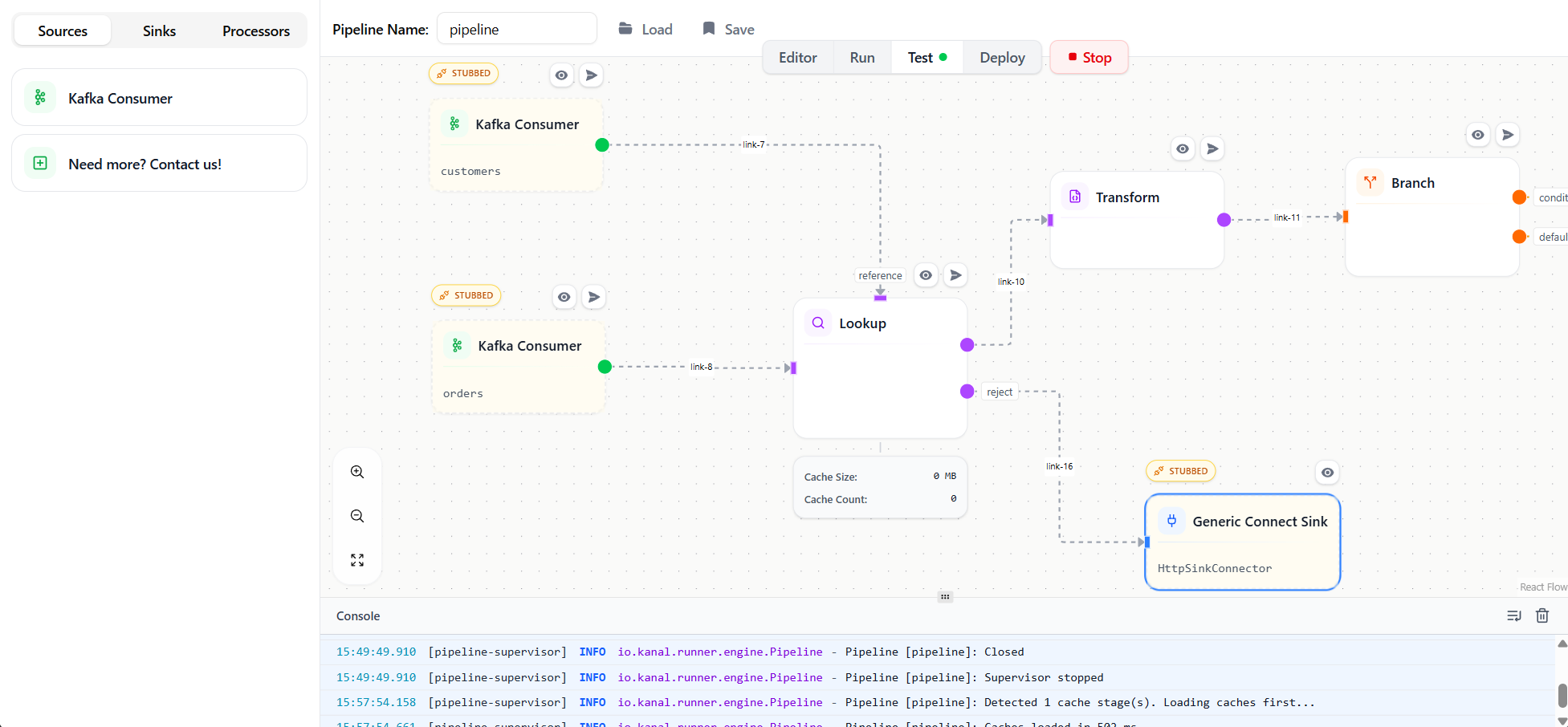
1. **Source and Sink nodes become stubs** — Instead of connecting to real Kafka topics or databases, they become interactive endpoints
2. **The pipeline runs synchronously** — Data flows through immediately, making it easy to follow
3. **Every node tracks inputs and outputs** — You can inspect what each node received and produced
 ## Starting a Test Run
1. Click the **Test Run** button in the toolbar (or use the dropdown next to Play)
2. The pipeline enters test mode — you'll see stub indicators on source and sink nodes
3. Source nodes display an input area where you can push JSON messages
## Pushing Test Data
With Test Run active, each source node shows a JSON input panel:
```json theme={null}
{
"id": 123,
"customer": {
"name": "Alice Johnson",
"email": "alice@example.com"
},
"items": [
{"sku": "WIDGET-01", "price": 29.99, "qty": 2},
{"sku": "GADGET-05", "price": 49.99, "qty": 1}
]
}
```
Click **Send** to push the message through the pipeline.
## Inspecting Node I/O
After sending a message, every node displays its input and output data:
| Node | Input | Output |
| ------------------------- | ------------------ | ------------------------- |
| **Kafka Consumer (stub)** | — | Your test JSON |
| **Transform** | Raw order | Transformed record |
| **Branch** | Transformed record | Routed to matching output |
| **JDBC Sink (stub)** | Final record | — |
Click on any node to expand its I/O panel and see the full JSON payload. This is invaluable for debugging complex transformations.
## Sink Stub Behavior
Sink nodes in Test Run mode:
* Display all records they would have written
* Show the exact payload that would go to Kafka, databases, or external systems
* Allow you to verify output format before connecting to real systems
## Selective Stubbing
By default, all sources and sinks are stubbed during a Test Run. You can toggle individual nodes between **stubbed** and **connected** to mix real integrations with test endpoints.
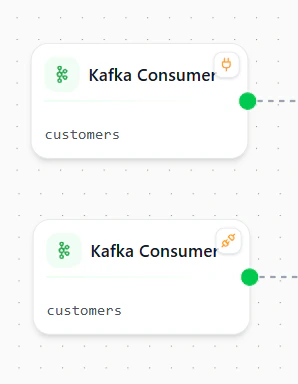
Mouse over any source or sink node to make the stub indicator appear:
* **Stubbed** — the node behaves as an interactive test endpoint (default)
* **Connected** — the node connects to its real Kafka topic or database
## Starting a Test Run
1. Click the **Test Run** button in the toolbar (or use the dropdown next to Play)
2. The pipeline enters test mode — you'll see stub indicators on source and sink nodes
3. Source nodes display an input area where you can push JSON messages
## Pushing Test Data
With Test Run active, each source node shows a JSON input panel:
```json theme={null}
{
"id": 123,
"customer": {
"name": "Alice Johnson",
"email": "alice@example.com"
},
"items": [
{"sku": "WIDGET-01", "price": 29.99, "qty": 2},
{"sku": "GADGET-05", "price": 49.99, "qty": 1}
]
}
```
Click **Send** to push the message through the pipeline.
## Inspecting Node I/O
After sending a message, every node displays its input and output data:
| Node | Input | Output |
| ------------------------- | ------------------ | ------------------------- |
| **Kafka Consumer (stub)** | — | Your test JSON |
| **Transform** | Raw order | Transformed record |
| **Branch** | Transformed record | Routed to matching output |
| **JDBC Sink (stub)** | Final record | — |
Click on any node to expand its I/O panel and see the full JSON payload. This is invaluable for debugging complex transformations.
## Sink Stub Behavior
Sink nodes in Test Run mode:
* Display all records they would have written
* Show the exact payload that would go to Kafka, databases, or external systems
* Allow you to verify output format before connecting to real systems
## Selective Stubbing
By default, all sources and sinks are stubbed during a Test Run. You can toggle individual nodes between **stubbed** and **connected** to mix real integrations with test endpoints.
Mouse over any source or sink node to make the stub indicator appear:
* **Stubbed** — the node behaves as an interactive test endpoint (default)
* **Connected** — the node connects to its real Kafka topic or database
 This lets you test parts of the pipeline against real systems while keeping the rest under your control. For example, you can connect a source to a live Kafka topic but stub the sink to safely inspect what would be written, or connect the sink to a real database while pushing synthetic data from a stubbed source.
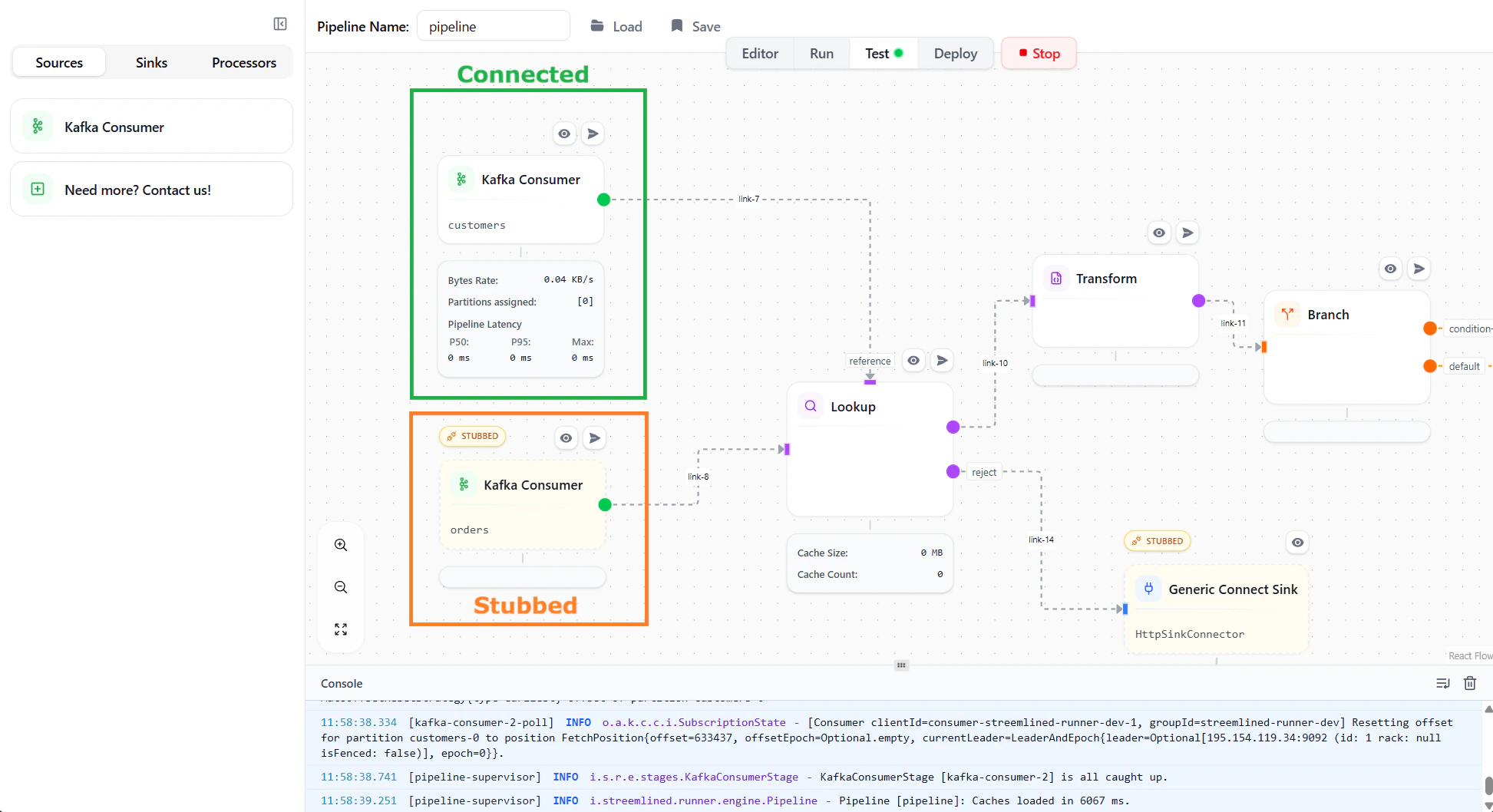 Selective stubbing is especially useful for validating integration boundaries without committing to a full end-to-end run.
## Benefits
Test without Kafka, databases, or other systems running
See results immediately as data flows synchronously
Inspect every transformation step with detailed I/O logs
Experiment freely without affecting real data
## Best Practices
Use Test Run mode to interactively build and debug your transformations. Once you're confident in the logic, codify the scenarios as Pipeline Tests for CI/CD.
Try various inputs including:
* Empty arrays and null values
* Missing optional fields
* Boundary conditions (e.g., exactly at threshold values)
* Invalid data that should be rejected
For pipelines with Branch nodes, test messages that should route to each output to ensure your conditions work as expected.
## Next Steps
Automate testing with YAML test definitions
Deploy your tested pipeline to production
Selective stubbing is especially useful for validating integration boundaries without committing to a full end-to-end run.
## Benefits
Test without Kafka, databases, or other systems running
See results immediately as data flows synchronously
Inspect every transformation step with detailed I/O logs
Experiment freely without affecting real data
## Best Practices
Use Test Run mode to interactively build and debug your transformations. Once you're confident in the logic, codify the scenarios as Pipeline Tests for CI/CD.
Try various inputs including:
* Empty arrays and null values
* Missing optional fields
* Boundary conditions (e.g., exactly at threshold values)
* Invalid data that should be rejected
For pipelines with Branch nodes, test messages that should route to each output to ensure your conditions work as expected.
## Next Steps
Automate testing with YAML test definitions
Deploy your tested pipeline to production