

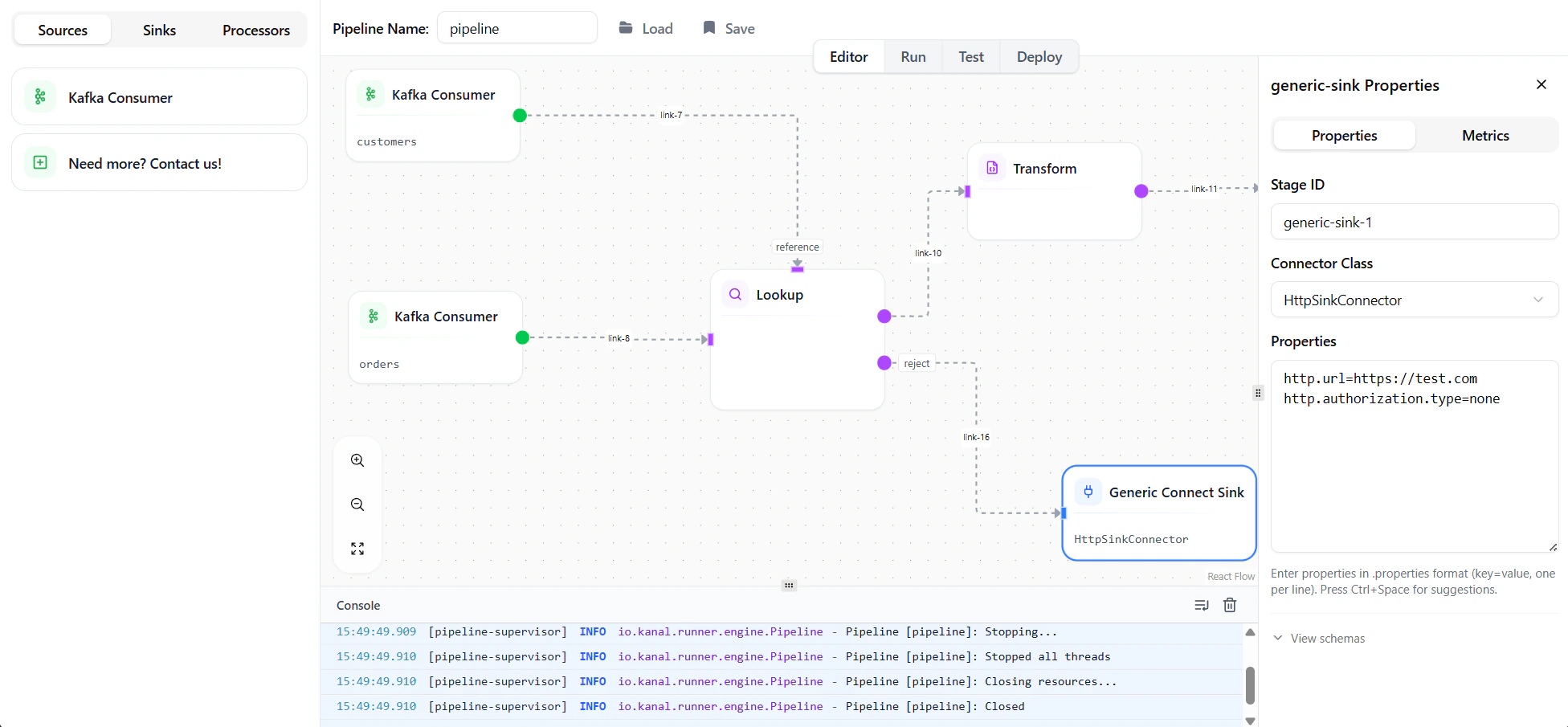
Editor Layout
The editor consists of four main areas:Working with Nodes
Adding Nodes
To add a node to your pipeline:- Find the node you want (sources, processors, or sinks) on the left panel
- Drag and drop it to the canvas
Selecting Nodes
- Single select — Click on a node
- Multi-select — Hold
Shiftand drag a selection box
Moving Nodes
- Drag nodes to reposition them on the canvas
- Selected nodes can be moved together
- The canvas auto-pans when you drag near edges
Deleting Nodes
- Select a node and press
DeleteorBackspace - Selected nodes can be deleted together
Connecting Nodes
Creating Links
To connect two nodes:- Hover over a node’s output port (right side)
- Click and drag to another node’s input port (left side)
- Release to create the connection
Removing Links
- Click on a link to select it, then press
Delete - Or drag the link endpoint away from its port
Properties Panel
When you select a node, the properties panel shows its configuration options.Common Properties
All nodes share these properties:Node-Specific Properties
Each node type has specific configuration options. See the Nodes Reference for details on each node.Schema Viewer
For nodes with schemas, the properties panel shows:- Input Schema — Structure of incoming data
- Output Schema — Structure of outgoing data
Working with Schemas
Streemlined uses a bidirectional schema propagation system that flows schemas through your pipeline based on the role of each node. Schemas can propagate both downstream (from sources toward sinks) and upstream (from sinks back toward sources).How Different Nodes Handle Schemas
Schema Conflicts
When a schema cannot propagate because a node refuses the update, the connecting link turns orange to indicate a conflict. Common conflict scenarios:- Connecting a source directly to a sink with different schemas
- Source output schema doesn’t match sink’s expected schema
Resolving Schema Conflicts
When you click on an orange (conflicted) link, the Properties Panel suggests adding a Transform node to bridge the schema mismatch:- Click the conflicted link
- Click “Add a Transform Node” in the Properties Panel
- A Transform node is inserted between the source and target
- The Transform node’s input is set to the source schema
- The Transform node’s output is set to the sink’s expected schema
- Configure the mapping in the Transform node to convert between schemas (see Transformations for JSONata syntax)
Handling Errors
Every domain error in Streemlined has a dedicated error output. When a deserialization fails, a Lookup finds no match, or a Sink cannot write, you decide what happens: route the record to a Dead Letter Queue, send it to a recovery flow — or fail the pipeline entirely if the error is unacceptable.Error Outputs by Node Type
Configuring Error Handling
To configure error handling for a node:- Select the node that can produce errors
- In the Properties Panel, locate the error output port
- Connect the error output to another node (e.g., a Kafka Producer for a Dead Letter Queue)
- Configure the target node to handle error records appropriately
Running Pipelines
Start a Pipeline
Click the Play button in the toolbar to start your pipeline locally. The pipeline will:- Validate all node configurations
- Connect to Kafka and other external systems
- Begin processing data
Deploy to Production
The Play button includes a small arrow that expands to reveal the Deploy option. Clicking Deploy opens a dedicated deployment screen where you can:- Configure environment variables for production
- Set up connection strings and credentials
- Review deployment settings before going live
Monitor Execution
While running, you can observe:- Throughput — Records processed per second
- Latency — Processing time per record
- Errors — Failed records and error messages
Console
The Console panel at the bottom of the screen displays real-time log messages from your pipeline.Stop a Pipeline
Click the Stop button to gracefully shut down the pipeline.Streemlined commits Kafka offsets after successful processing, so stopping and restarting won’t cause data loss.
Saving and Loading
Save Pipeline
- Click Save in the toolbar
- Enter a name for your pipeline, or select an existing one to overwrite
Load Pipeline
- Click Load in the toolbar
- Browse the visual previews and select the pipeline you want to open
Next Steps
Transformations
Learn JSONata for data transformation
Nodes Reference
Learn about all available nodes
Configuration
Configure Kafka, databases, and more